Big game cards instead of the Windows desktop. Tap a card to play; one button brings the cards back.
our bay PC starts straight into big picture cards: GSPro, TruGolf Multisport, or any game you have. A guest taps a card and the game opens over the cards. When the game is over, one press of a key combo or a button on your BA control box asks "End this game?", closes everything that card opened, and brings the cards back. Staff get the normal Windows desktop with a PIN.
Key Features
Your own cards. Your pictures, your games, in the order you want, as a carousel, a row or a grid.
Learn. Start a game once while BayLauncher watches. It finds every program the game opens, so ending a game closes them all.
Recipes. GSPro with ProTee AutoStart, TruGolf Multisport (it finds the sports for you), or any other program.
One-button end. A key combo or your control box button. In Multisport, Exit Game still goes back to the sports menu; closing the launcher brings the cards back.
Every screen. The cards on your projector or main TV, the BA Custom Products background on the side screens.
Never locks you out. Four ways back to the Windows desktop, on a sheet you print and keep next to the PC. No Windows policies, no blocked keys: when BayLauncher isn't running, the PC is a normal PC.
Private. No internet connection and no personal data collected. The staff PIN is stored as a salted hash, never as the digits.
What's in the Download
BayLauncher setup (a normal Windows installer; it appears in Installed apps)
"Back to the desktop" sheet (PDF): print it and keep it next to the bay PC
Owner guide (PDF) and a quick-start README
SHA-256 checksums
Getting Started
Add to cart and download the zip file.
Unzip and run BayLauncher-Setup-1.0.0.exe (accept the SmartScreen prompt if shown: More info, then Run anyway).
Start > BayLauncher > BayLauncher in a window. A short setup asks for your staff PIN, the screen for the cards, the button that ends a game and your first game card.
On the bay's Windows account: Start > BayLauncher > Turn on BayLauncher for this account, then sign out and back in. The cards fill the screen.
Getting Back to the Desktop
Staff PIN: the lock button in the top-right corner > your PIN > Desktop.
Ctrl+Alt+Del > Task Manager > Run new task > type explorer.exe > OK.
Restore Windows Desktop: the shortcut on the desktop, or Start > BayLauncher.
Put an empty file named SAFE.txt in C:\ProgramData\BayLauncher, then sign out and back in.
Requirements & Support
Windows 11, 64-bit (tested). Windows 10 64-bit may work but is not tested.
Your games installed and working on that PC.
Note for Windows 11 users: with Smart App Control enabled, Windows may block new apps entirely. Reach out and we'll walk you through it.
Free edition: while BayLauncher runs, it shows the BA Custom Products background on your screens.
Owner guide and help: github.com/DiyGolfGuy/BayLauncher (also inside BayLauncher: "? Help" in Settings).
Support: bacustomproducts@gmail.com
Version 1.0.0. Setup SHA-256: e45f7d0bf8045b86b55bf670addec10668f97344d9895874d06073718e56b777
BayLauncher is free to use; the license agreement is shown during setup. GSPro, TruGolf, E6 and ProTee are trademarks of their owners; BayLauncher is not affiliated with them.
Big game cards instead of the Windows desktop. Tap a card to play; one button brings the cards back.
our bay PC starts straight into big picture cards: GSPro, TruGolf Multisport, or any game you have. A guest taps a card and the game opens over the cards. When the game is over, one press of a key combo or a button on your BA control box asks "End this game?", closes everything that card opened, and brings the cards back. Staff get the normal Windows desktop with a PIN.
Key Features
Your own cards. Your pictures, your games, in the order you want, as a carousel, a row or a grid.
Learn. Start a game once while BayLauncher watches. It finds every program the game opens, so ending a game closes them all.
Recipes. GSPro with ProTee AutoStart, TruGolf Multisport (it finds the sports for you), or any other program.
One-button end. A key combo or your control box button. In Multisport, Exit Game still goes back to the sports menu; closing the launcher brings the cards back.
Every screen. The cards on your projector or main TV, the BA Custom Products background on the side screens.
Never locks you out. Four ways back to the Windows desktop, on a sheet you print and keep next to the PC. No Windows policies, no blocked keys: when BayLauncher isn't running, the PC is a normal PC.
Private. No internet connection and no personal data collected. The staff PIN is stored as a salted hash, never as the digits.
What's in the Download
BayLauncher setup (a normal Windows installer; it appears in Installed apps)
"Back to the desktop" sheet (PDF): print it and keep it next to the bay PC
Owner guide (PDF) and a quick-start README
SHA-256 checksums
Getting Started
Add to cart and download the zip file.
Unzip and run BayLauncher-Setup-1.0.0.exe (accept the SmartScreen prompt if shown: More info, then Run anyway).
Start > BayLauncher > BayLauncher in a window. A short setup asks for your staff PIN, the screen for the cards, the button that ends a game and your first game card.
On the bay's Windows account: Start > BayLauncher > Turn on BayLauncher for this account, then sign out and back in. The cards fill the screen.
Getting Back to the Desktop
Staff PIN: the lock button in the top-right corner > your PIN > Desktop.
Ctrl+Alt+Del > Task Manager > Run new task > type explorer.exe > OK.
Restore Windows Desktop: the shortcut on the desktop, or Start > BayLauncher.
Put an empty file named SAFE.txt in C:\ProgramData\BayLauncher, then sign out and back in.
Requirements & Support
Windows 11, 64-bit (tested). Windows 10 64-bit may work but is not tested.
Your games installed and working on that PC.
Note for Windows 11 users: with Smart App Control enabled, Windows may block new apps entirely. Reach out and we'll walk you through it.
Free edition: while BayLauncher runs, it shows the BA Custom Products background on your screens.
Owner guide and help: github.com/DiyGolfGuy/BayLauncher (also inside BayLauncher: "? Help" in Settings).
Support: bacustomproducts@gmail.com
Version 1.0.0. Setup SHA-256: e45f7d0bf8045b86b55bf670addec10668f97344d9895874d06073718e56b777
BayLauncher is free to use; the license agreement is shown during setup. GSPro, TruGolf, E6 and ProTee are trademarks of their owners; BayLauncher is not affiliated with them.

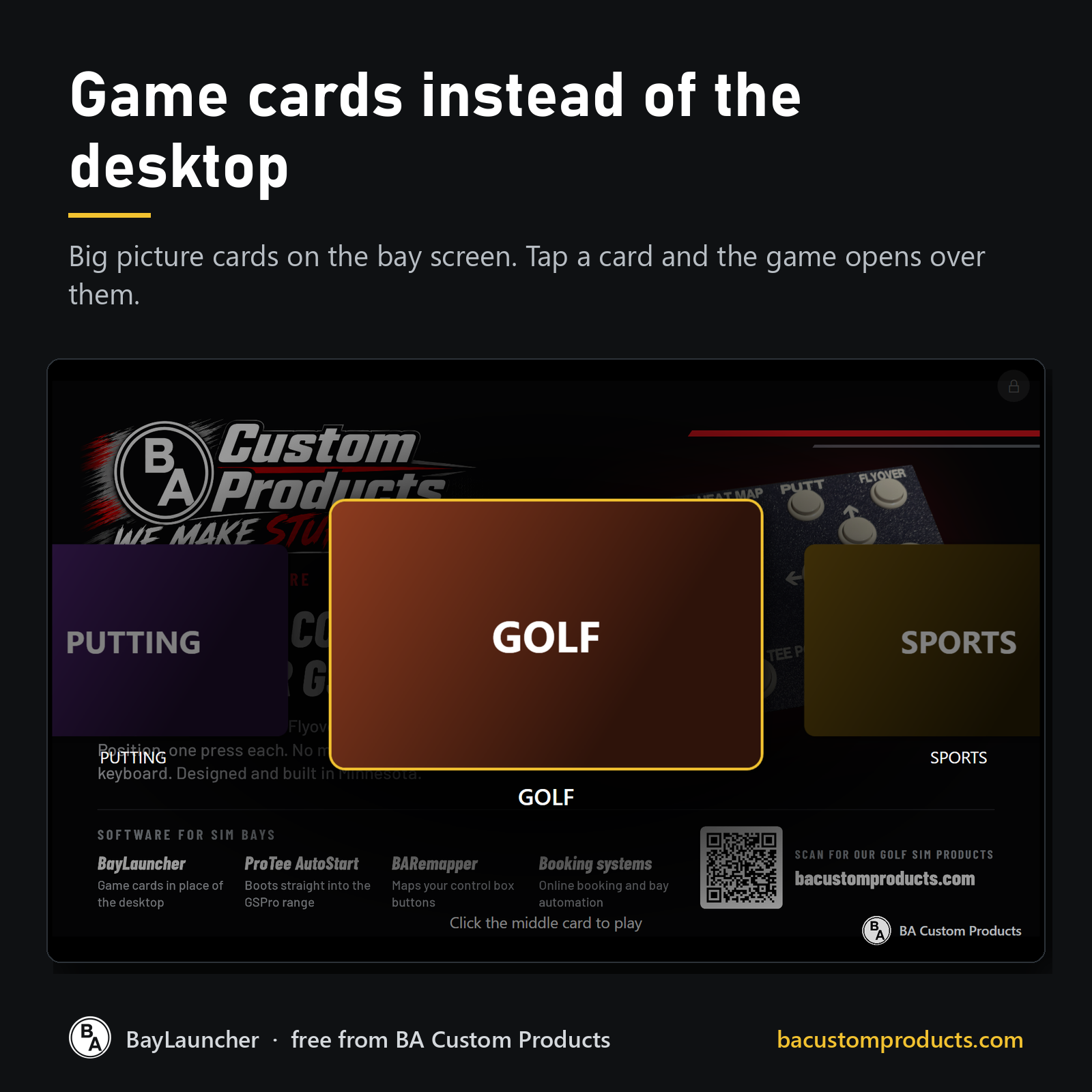 Image 1 of 9
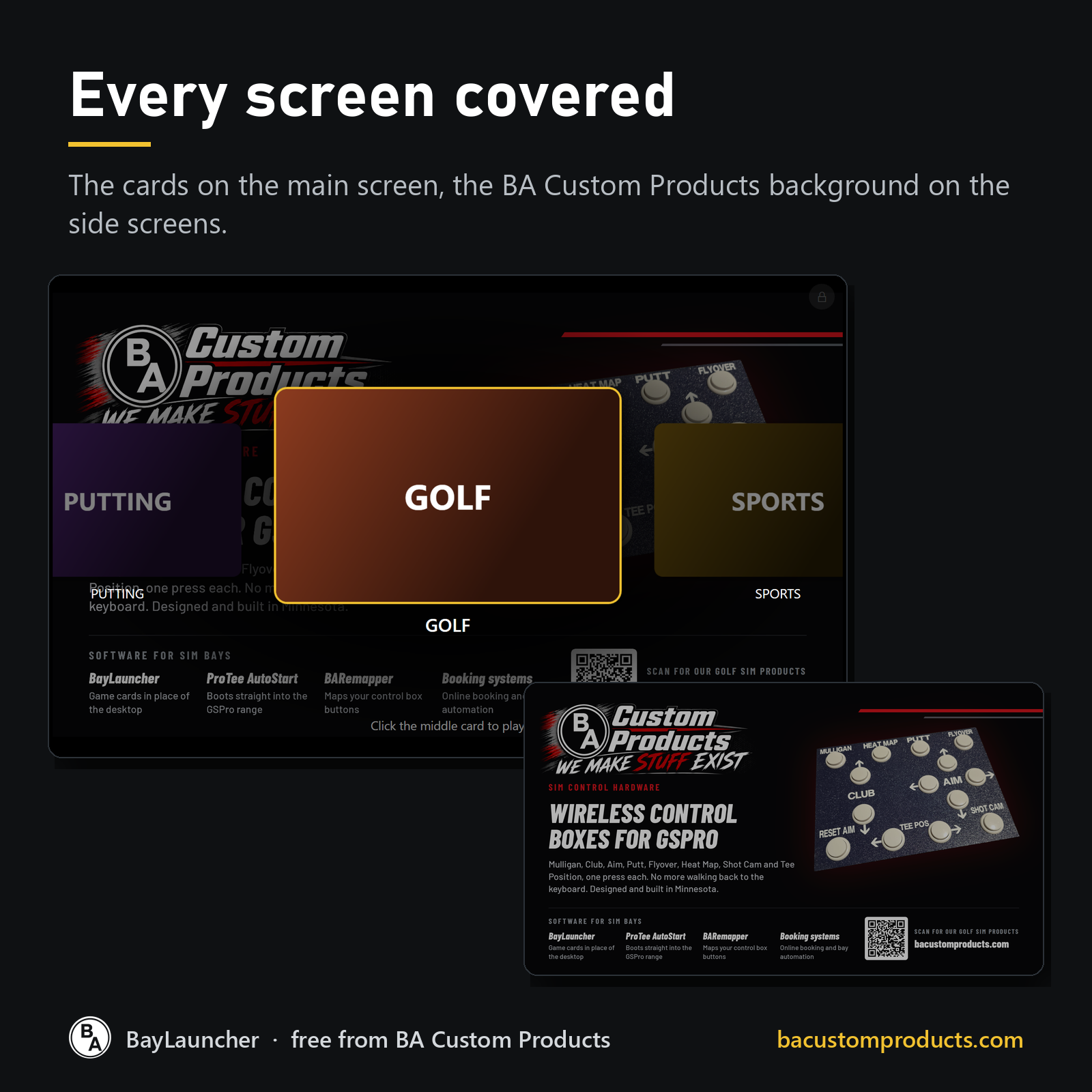 Image 2 of 9
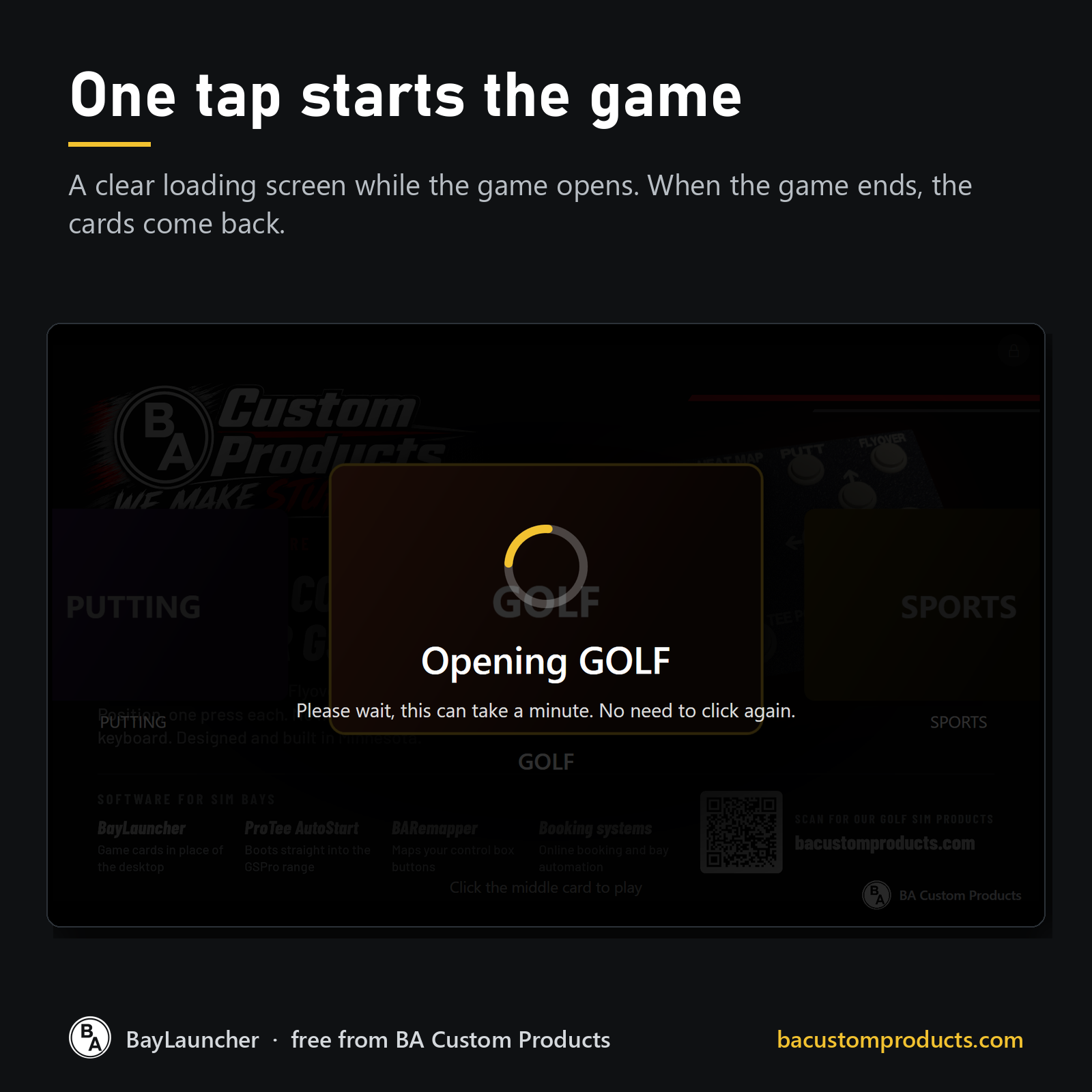 Image 3 of 9
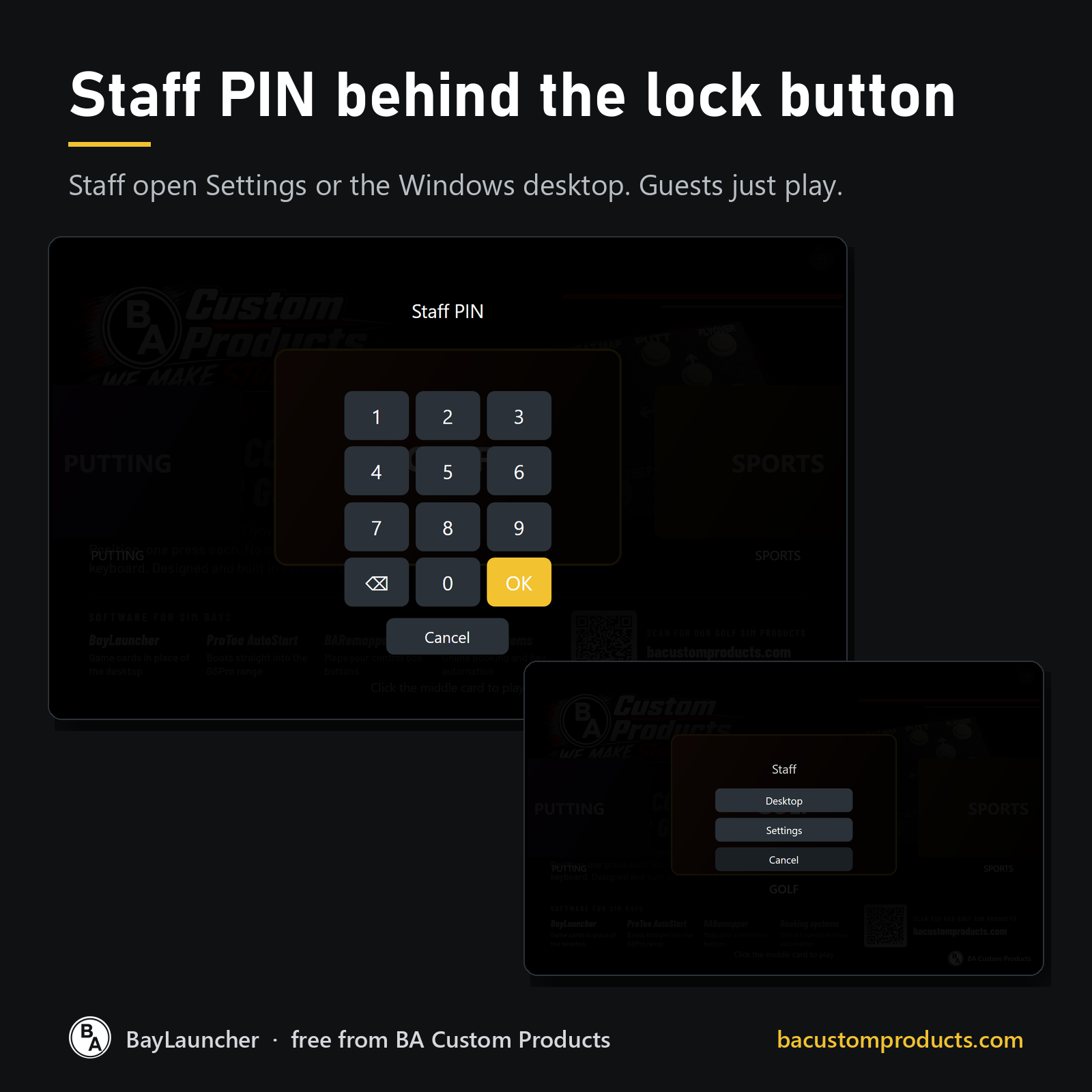 Image 4 of 9
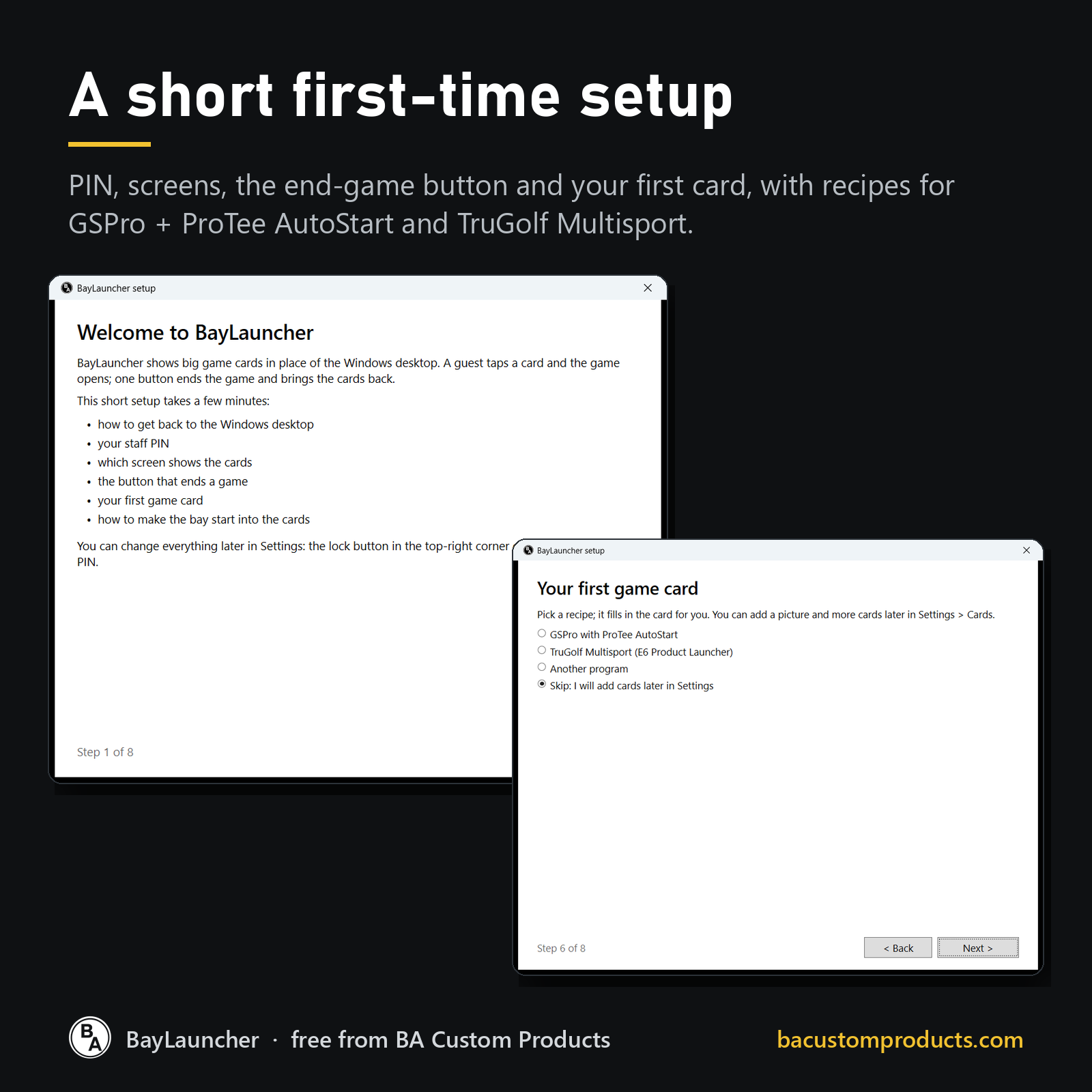 Image 5 of 9
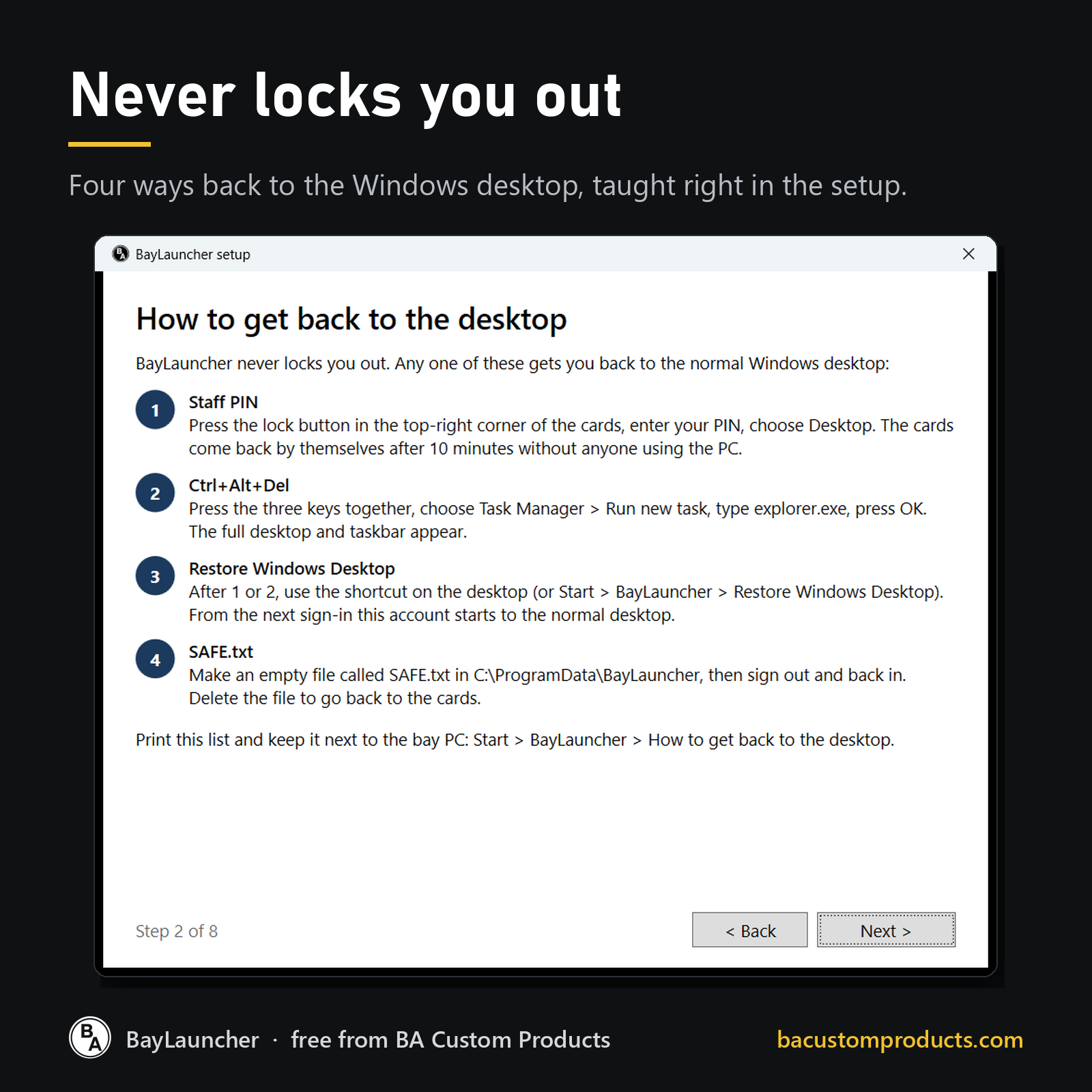 Image 6 of 9
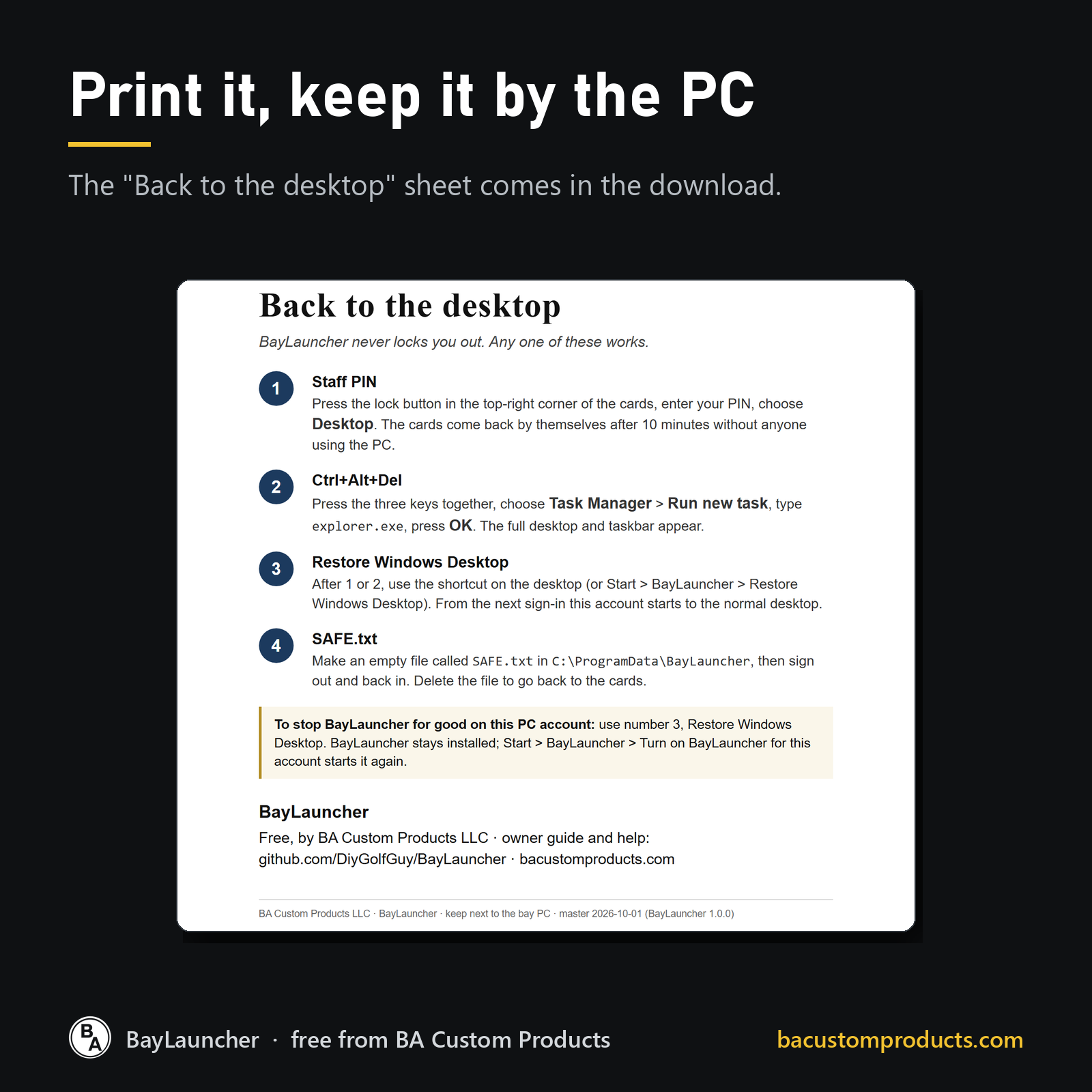 Image 7 of 9
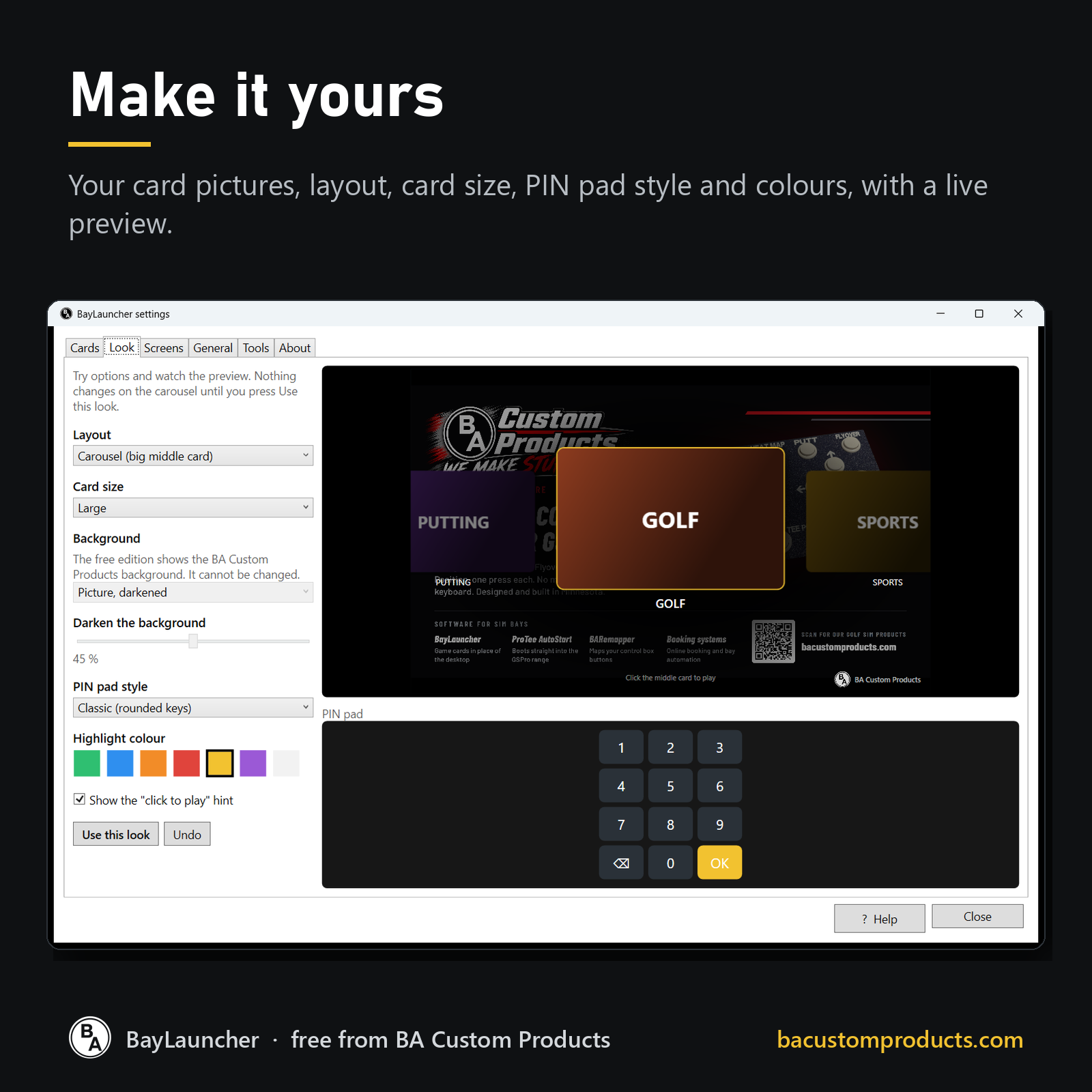 Image 8 of 9
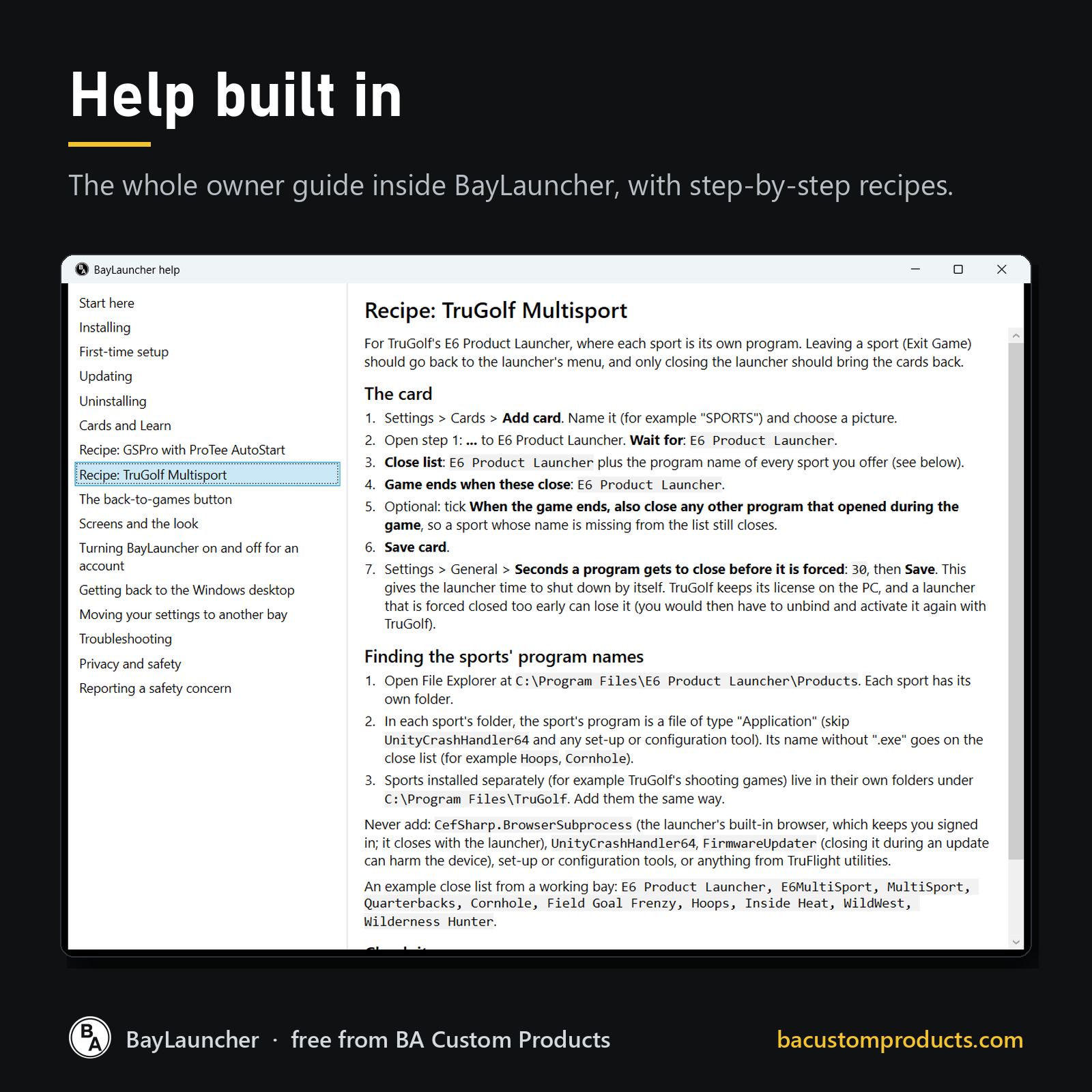 Image 9 of 9